Example 9 – Customising the program
This example serves to demonstrate some of the options available for customising the software for specific needs or preferences. The options covered here are:
1. Add an image of the property
2. Adding client and/or consultant name for display in reports
3. Adding a company logo for display in reports
4. Making the display more readable.
5. Changing the font
6. Customising a report
Let us start with the Example 1 and go from there. Open the file and display the spreadsheet.
1.
Add an image of the property...
You will need an image (jpeg format) of the property, preferably stored in the
same folder as the file. You can click anywhere in the Property Details section
below the spreadsheet or choose Load image of property under the File menu.
While here, enter an address and description of the property. Click Load image
and choose the photograph.
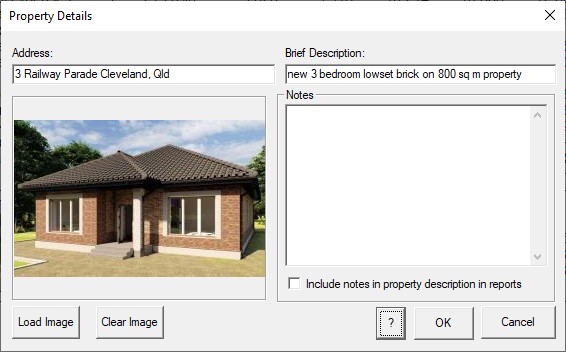
Click OK and the image and details will appear in the Property Details section
below the spreadsheet.

2.
Add a consultant name for reports (PIAPro only)
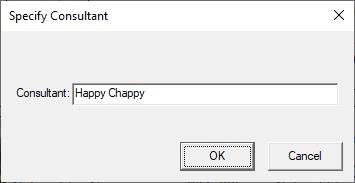
You may wish to specify the investor’s
(Investor/Personal Details) and consultant’s names (Settings menu/Consultant)
so that they too appear in any report generated.
3.
Add a company logo (PIAPro version only)
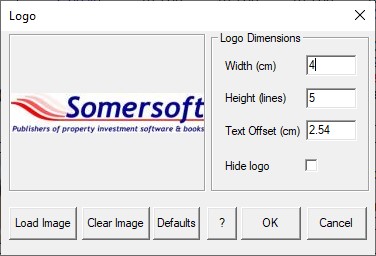
As with a property image, a company logo can be
added so that it too can appear in any reports generated. Choose Logo (Settings
menu) and locate your company logo image (jpeg format). You will also have some
flexibility in relation to how large a space you want it to take up and whether
or not you even want it displayed. You can always adjust these settings at any
time to suit the dimension of the report content.
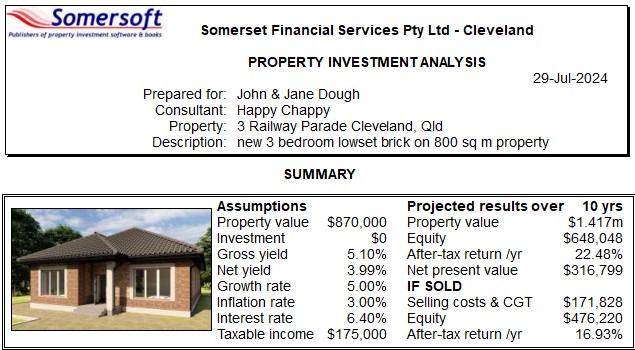
The top of the Investment Analysis report would look like this...
4. Making the display more readable
If you want to improve legibility of the interface on the screen, the way to do it is to increase the magnification (Settings menu/Preferences or View menu/Zoom), not the size of the font. You can always reset it to the default chosen by PIA based on the screen resolution.
5.
Change the font.
If you have a preference for a specific font
it is a simple thing to change. The default font is for an Arial Regular size
10pt. The default has been chosen for reasons of clarity, field widths and
report pagination so any change must be done with these constraints in
mind. If you simply want to have a larger screen interface for ease of
use, the correct procedure is to increase the magnification (Settings
menu/Preferences or View menu/Zoom) rather than the size of the font (see
above).
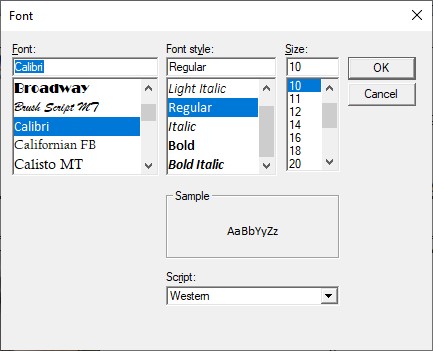
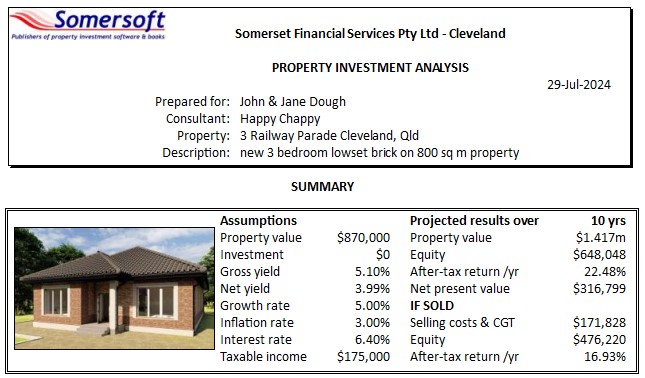
To change the font, choose Set Font under the Settings menu. For example...
6.
Customised report
PIA has a number of report options (see Report and Graphics menus) the templates
of which are made up of a number of blocks of information. Some reports are
only enabled if they pertain to the spreadsheet model being used (eg the Wealth
Builder analysis report is only enabled if you have the Wealth Builder
spreadsheet open. At times you may wish to modify the standard reports that are
available to suit specific needs or preferences (eg the standard Investment
Analysis report consists of a summary page (which includes a copy of the
spreadsheet) and a 3 or 4 page tabulation or description of the components that
provide the detail behind the summary. Lets look at an example of a customised
report (Choose Customised Report in the Report menu).
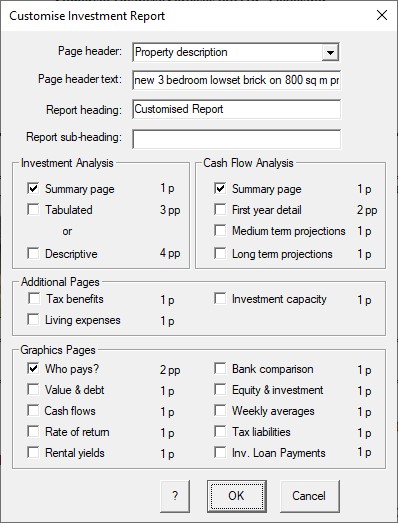
Lets choose the Property description as being the header (on page 2+) and to
identify what we have done, we will give the report a heading of “Customised
Report”. In this case, we would like to include the Summary page of the
Investment Analysis report along with the Summary page from the Cash Flow
Analysis report as well as the Graphic “Who Pays?”
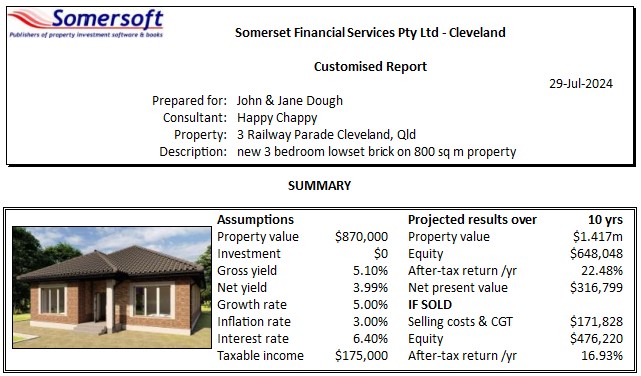
When you click OK the 4pp report will be generated and displayed. Note that it
starts with the Investment Analysis Summary but titled “Customised Report” as
we specified.